Learn about the HUB reservation booking process.
View availability and submit a reservation request online.
Request access to view available spaces in the HUB.
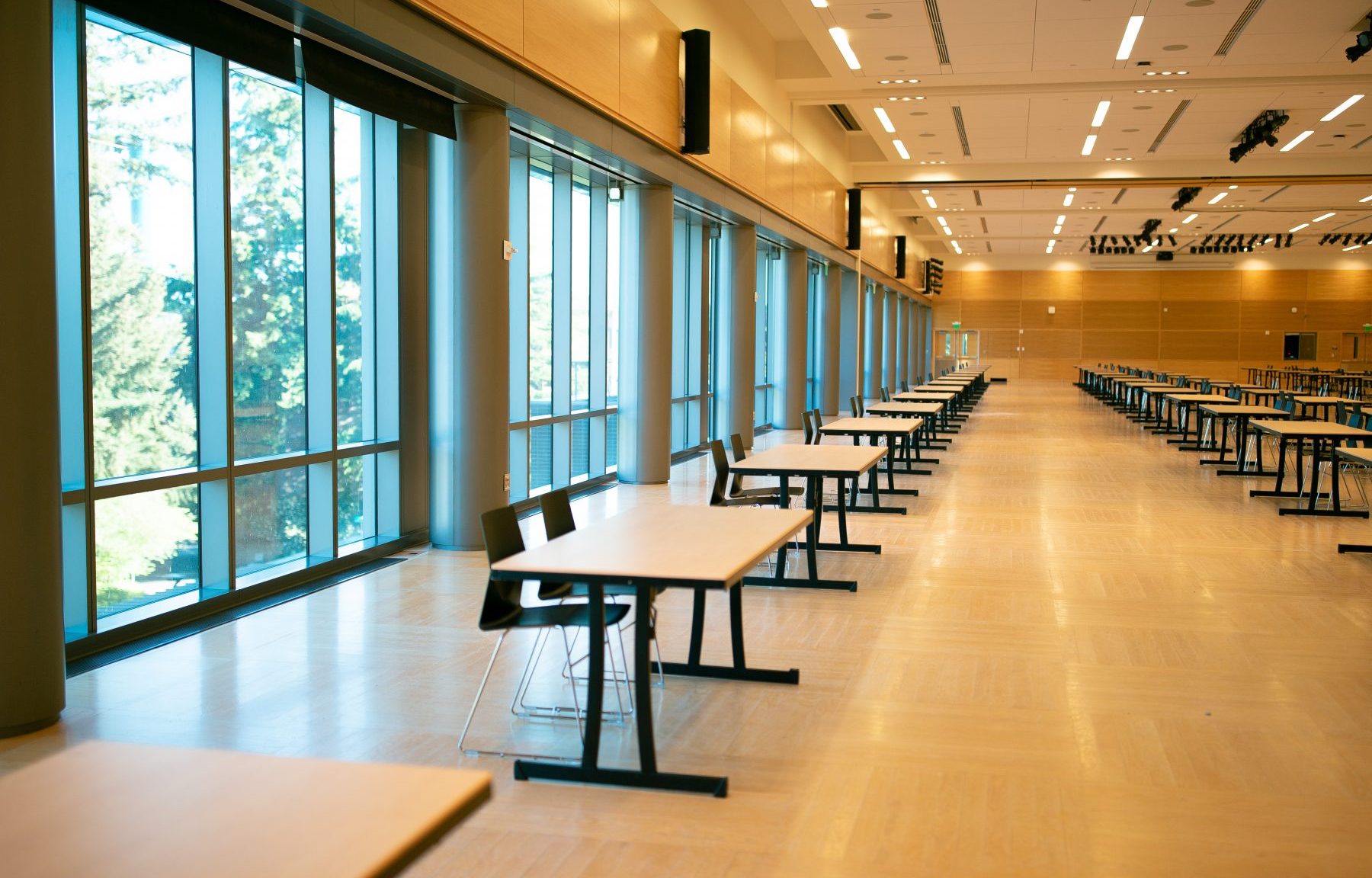
View information of listed areas available for a reservation in the HUB.
View the rates for our different customer categories.
See our polices, FAQ, and view resources provided by the HUB.
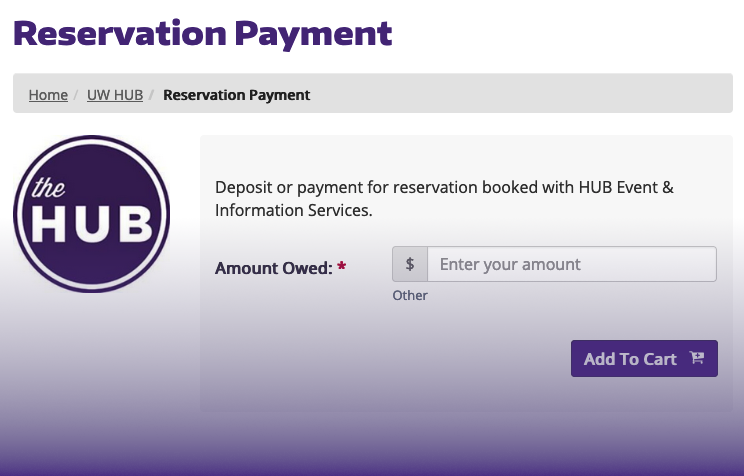
Pay for your reservation online using Event & Information Services.
HUB Event & Information Services (HUB EVIS) is responsible for managing the meeting and event spaces within the HUB as well as the HUB Information Desk which provides a variety of services including the Lost and Found, Ticket Sales and general Information Support.
"First, I wanted to give a huge thank you to the HUB for all your help with our event the iTech Inclusion Symposium in November. We were able to bring 140 underrepresented minoritized high school students to the HUB and engage them with technology and the many options they have in college going forward."
- Eva Perez iTech Symposium
"They are prompt, courteous, honest, and willing to answer all of our questions. You have a stellar team and we have really appreciated being able to work with such great people!"
- Tom Thorpe
"Capstone is a huge event and can be pretty unwieldy at times and it always made me feel better to know we were in good hands with you. If nothing else, I always knew things would go well at the HUB!"
- Cris Fowler
"I want to let you know that your team was fantastic yesterday – everything was set and ready to go and worked well. Thank you to you and your entire team -- we appreciate your professionalism and good work!"
- Rebecca Sladek 2019 Washington Mental Health Symposium
"DubHacks this weekend was INCREDIBLE and we SERIOUSLY could not have done it without you! You have seriously been so supportive and kind and wonderful and I feel so so lucky to have you. Please give a big shoutout to all the student building managers and other staff that helped us out this weekend too, they were all so helpful and kind."
- Taylor Ka, 2019 Dubhacks
While holding an event in the HUB clients are also supporting a large student employment program. HUB EVIS provides jobs for approximately 120 students with positions ranging from information desk and reservations staff to audio technicians and building managers. These students will learn skills that they can use throughout their careers. Our operation would not function without them!
Please review our website for more information or you can email or call us using the number below.
Phone: 206-543-8191
Email: hubres@uw.edu