
Special Relation searches
By dragging-and-dropping search sets on the Search form you can rapidly create data sets from tables that are related by special identifier fields (for example, the Subject table and Tumor_Description table, which are related by the Subject_ID field). In some cases, however, you may wish to perform a search using the values from unrelated fields to create a "pseudo-relationship." An example of this would be using the set of recurrent tumors to define the set of "original tumors with later recurrences." The Special Relation drag-and-drop area at the bottom of the Search form can help you perform these types of searches.
Let's work through the "original tumors with later recurrences" example. In the appendices section on the Tumor_Description table you would find information on the Recurrence_of data field. The field stores a long integer with the following values:
0: No recurrence
1: Yes, but no data
or the [Tumor]Tumor_No of the original tumor if it is in the data file.
Use the New Query form to create a new search set from the Tumor Description table, looking for tumors with Recurrence_of values > 0. The resulting set will contain all recurrent tumors.
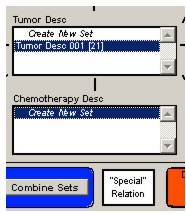
Next, drag-and-drop this set on the Special Relation box at the bottom of the Search form.
The Special Relation form appears. It allows you to select a field from the Tumor_Description table that you want to relate to any appropriate field in the database, even if the table that stores the other field is not related to the Tumor_Description table. The definition of "appropriate" is that the two selected fields must have similar data types (string/text; integer/long integer/real; date/date).
In our example we chose to relate the Recurrence_of values in our set of 21 recurrent tumors to the Tumor_No field from the same table.

First, select the Recurrence_of field from the left-hand box labeled Tumor Description. Then, in the right-hand box, click the arrow or plus sign next to the Tumor Description table to open a sublist, and select Tumor_No. When you select two appropriate fields the "Relate selected fields" button is enabled. Clicking this button creates a new set with the original tumors in it.
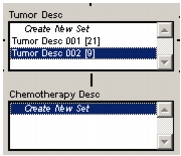
In this example, we started with 21 recurrent tumors (Tumor Desc 001 [21]) and found data on nine of the original tumors that they are recurrences of (Tumor Desc 002 [9]). The difference in numbers is due to either multiple recurrences of one tumor or the `Yes, but no data' value.
If you are relating a string or text field, you are given the option to include the records with the exact text values or those just containing a portion of the text.
In this example, if you wish to view the set you have created, drag-and-drop it on the Subject list on the Search form. The resulting set (Subject 002 [7]) shows that six subjects had the nine original tumors, which had a total of 21 recurrences. To view the subjects, drag this new set to the Drop Selected Subject Set box at the bottom of the Search form.
|
Otobase Otobase Web Site Voice: (206) 221-2430 Fax: (206) 221-5152 otobase@u.washington.edu |