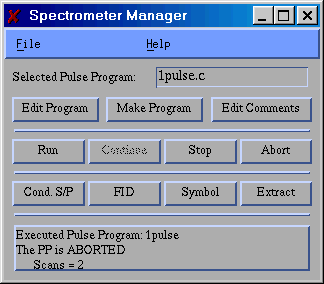
The Spectrometer Manager window looks like this:
Each of the items on the interface is explained in the sections that follow. These sections can be reached directly by clicking on the items in the above picture.
The Manager also provides a simple interface for the task of writing and compiling pulse programs, and logs all output for review in the case of errors.
The Manager can be started from the command line by entering the command:
Man
When the Manager starts, two windows will appear on the screen. This first, which is shown above, is the actual Manager window. The second window, show below, is the Log_File window.
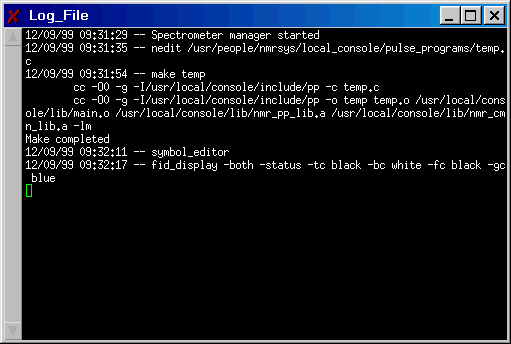
This window displays a log of the user's activities. Each time the Manager performs an action, the underlying command is displayed in the Log_File window. Likewise, any messages that resulted from the action (such as errors) are also displayed in the Log_File window. For example, if a pulse program fails to compile, or succumbs to a run-time error when it is executed, the resulting error messages will appear in the this window. Everything that appears in the Log_File window is also written to an actual log file which, by default, is named "output.log".
The file menu contains only two items.

The Select Program item brings up a dialog that allows the user to select a pulse program. Once a program is selected, the name of the program will be displayed in the Selected Pulse Program Box in the manager window. The selected program name is the one that will be acted on whenever the Edit Program, Make Program or Run buttons are pressed.
The Quit item terminates operation of the spectrometer manager program.

This is a display only item that always shows the name of the currently selected pulse program. The pulse program name displayed is the one that will be acted on whenever the Edit Program, Make Program or Run buttons are clicked. The pulse program name is selected from the File Menu.

Clicking this button invokes an editor to open the currently selected pulse program for editing. The name of the currently selected pulse program is always displayed in the Selected Pulse Program Box and can be changed from the File Menu.
By default the Silicon Graphics "jot" editor is used, however the user can specify his or her own choice of editor by placing an entry in the console configuration file. If remote operation from a non-SGI computer is anticipated, "jot" is not a good choice as it requires an X-server that supports SGI protocol extensions. The public domain "nedit" is a better choice for remote operation.

Clicking this button invokes the "make" utility, using the Makefile in the user's pulse program directory, to compile and link the currently selected pulse program. The name of the currently selected pulse program is always displayed in the Selected Pulse Program Box and can be changed from the File Menu.
Any warning or error messages generated as the pulse program is compiled and linked are displayed in the Log_File window.

Each time a pulse program is run, a copy of the text in the user's comments file is inserted into the resulting data file. This allows the user to insert comments into each data file that document the details of the experiment.
Clicking this button invokes an editor to edit the user's comment file. By default this file is named "comments.txt" and resides in the user's pulse program directory. However, the user can specify his or her own choice for the file name by placing an entry in the console configuration file.
By default the Silicon Graphics "jot" editor is used, however the user can specify his or her own choice of editor by placing an entry in the console configuration file. If remote operation from a non-SGI computer is anticipated, "jot" is not a good choice as it requires an X-server that supports SGI protocol extensions. The public domain "nedit" is a better choice for remote operation.
Clicking this button runs the currently selected pulse program. The name of the currently selected pulse program is always displayed in the Selected Pulse Program Box and can be changed from the File Menu. Any messages that are generated when the program runs will be displayed in the Log_File window.
This is the standard way of starting an experiment. The effect in the same as if the pulse program had been executed by typing in the name on the command line. The spectrometer manager accomplishes the same thing by forking a process and then executing the pulse program in the context of the new process.
By default the pulse program is run with the "-o" command line option, which tells the program that it is free to overwrite an existing data file if the data file name matches the "overwritable data name." The user can specify his or her choice of pulse program command line options to be used when the "Run" button is pressed by placing an entry in console configuration file.

Clicking this button will restart an experiment that is in a conditional pause state. See Conditional Stop/Pause Window for more information about the conditional pause feature.

Pressing this button causes the pulse programmer to halt immediately, thus stopping the experiment in progress. If the pulse program has written data to the data file then the file is preserved. If no data (other than the header information) has yet been written then the file is deleted.
If the user wishes to halt a experiment in an orderly manner, such at the end of an FID, the Conditional Stop/Pause Window should be used.

Pressing this button causes the pulse programmer to halt immediately, thus stopping the experiment in progress. The data file associated with the aborted experiment is deleted immediately.
Clicking this button opens a window open a window that can be used to request that an experiment in progress should pause or halt at a specified point. See Conditional Stop/Pause Window for details.
Clicking this button launches the FID display process. This process opens a window which provides a display of the data being collected by the experiment.
See FID Display Program for more information.
Clicking this button launches the symbol editor process. This process opens a window which displays all the symbols, and there values, in the current pulse program symbol table. The window can also be used to change the values of symbols.
See Symbol Table Editor for more information.
Clicking this button opens the Extract From Data File window. This window allows the user to view the comments in a selected data file and to extract the pulse program that created the file, extract the symbol file that was in use when the data file was created, or extract the actual data in a form that is compatible with the felix data analysis program.
See Extract Program for more information.
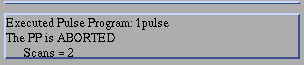
This box displays the current status of the pulse programmer: halted, running, paused, etc.