FFT Webtool bundles the fire modeling tools FCCS & Consume into a single web-based application.
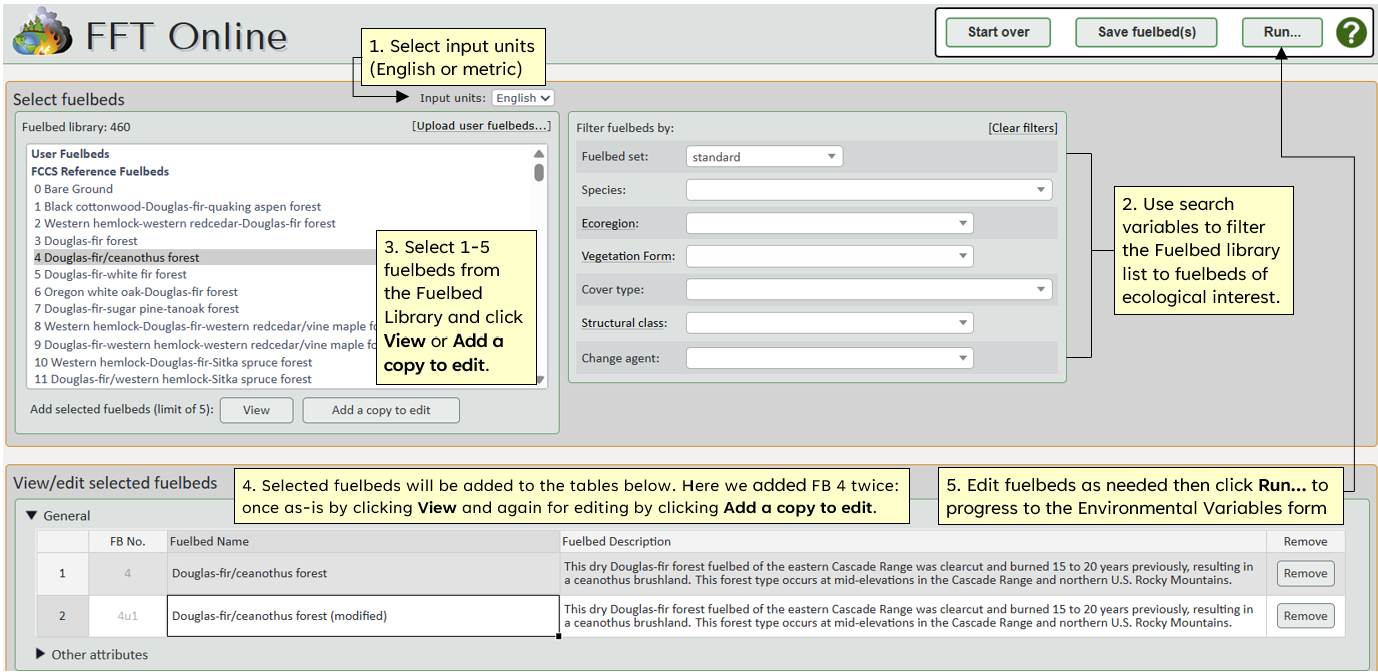
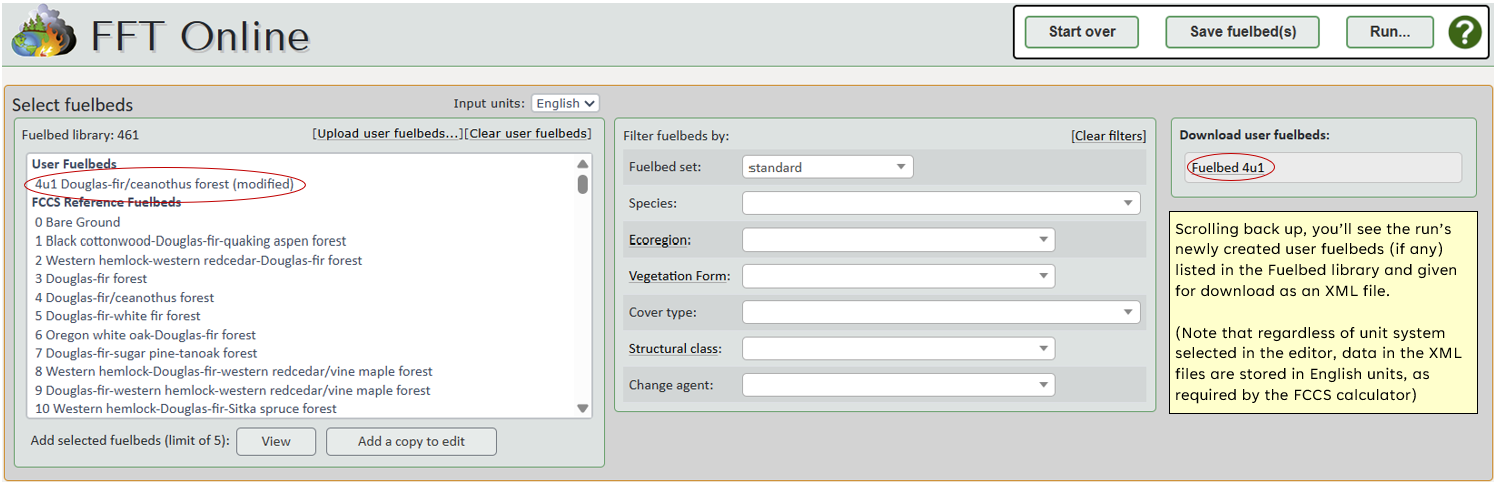
Step 1: Select and edit fuelbeds then click Run.
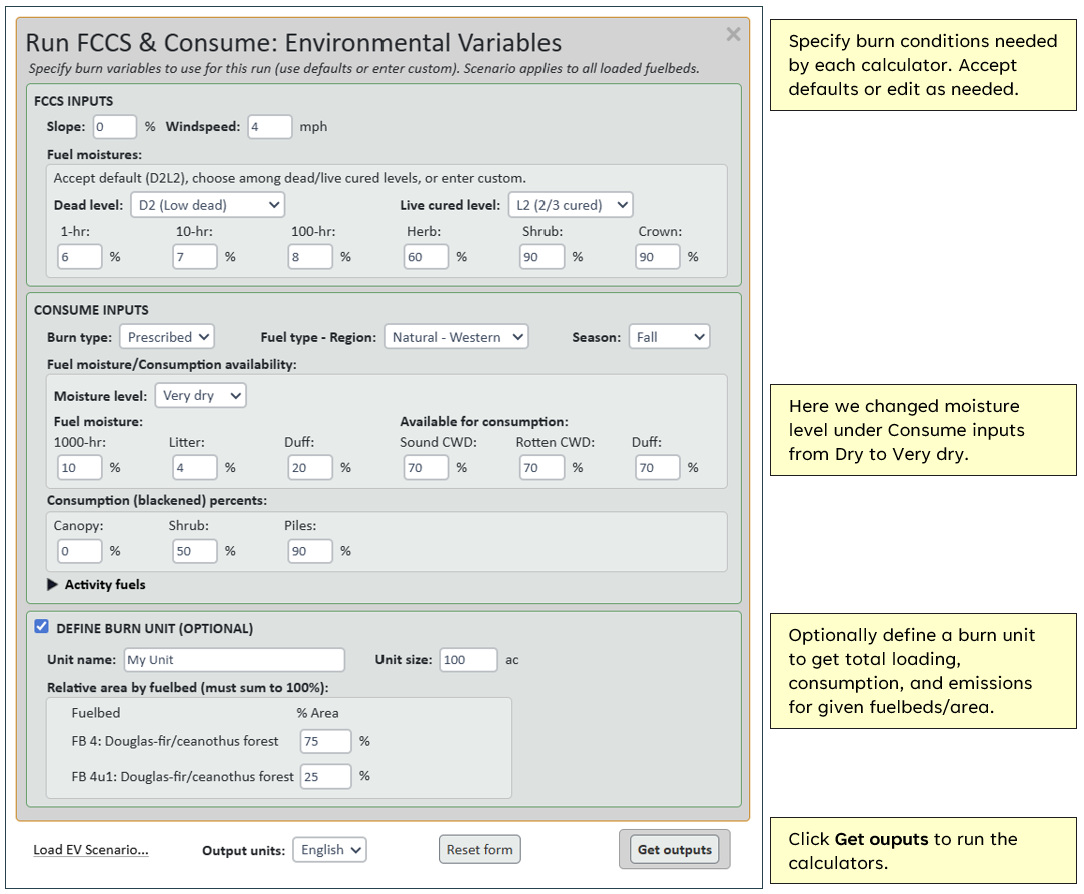
Step 2: Specify burn conditions (i.e., the EV Scenario), optionally define a burn unit, then click Get outputs. See the EV form help page for input definitions.
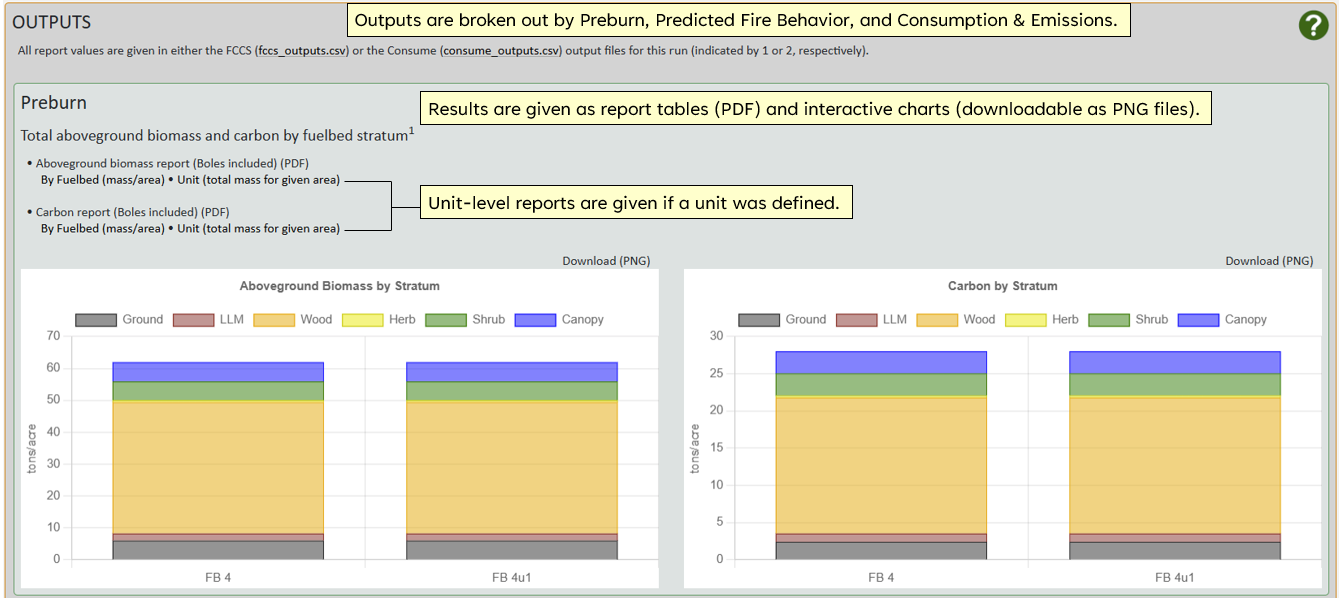
Step 3: View/download outputs. Results will appear below the fuelbed tables (you may have to scroll). See the FFT Outputs help page for more info.
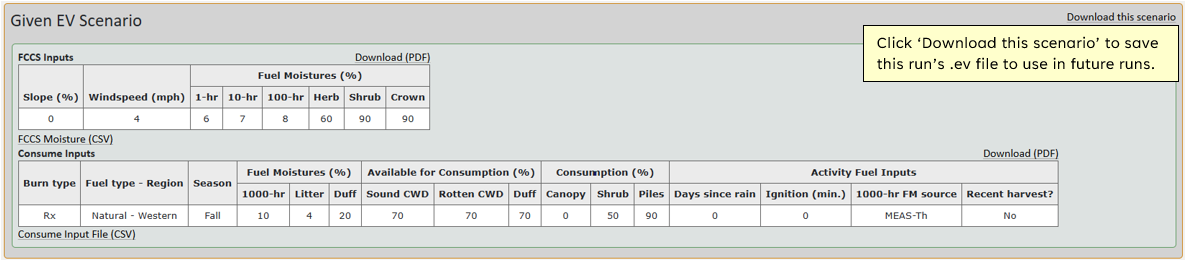
The run's environmental scenario inputs are given first for reference.
Followed by calculator outputs given as downloadable tables, reports, and charts.
Step 4: Download the given run's fuelbeds for future use (if desired).
Setting up a run
With over 100 inputs to specify, building an FCCS fuelbed from scratch is a daunting and time-consuming task. To help users get started, the FCCS Reference Fuelbed Library was developed to represent wide variety of forests, shrublands, and grasslands across the US.
To build a run, start by selecting up to 5 fuelbeds that represent your study/management area (see Selecting Fuelbeds for more information on using the fuelbed filters).
When selecting a reference fuelbed you have two options:
User fuelbeds either created during the current session or uploaded to the web tool will appear in the 'User Fuelbeds' section of the Fuelbed Library. They can be added to the editor by clicking either Add (to continue editing) or Add a copy to edit (to make another fuelbed based on the existing one).
Due to server contstraints, web tool runs are limited to a max of 5 fuelbeds. Users will notice a pause between clicking 'Get outputs' and the appearance of outputs. Crunch times will vary depending on user internet bandwidth. To process larger batches of fuelbeds we recommend running the apps locally from command line.
Here's a closer look at the user interface:
Editing species and litter compostion
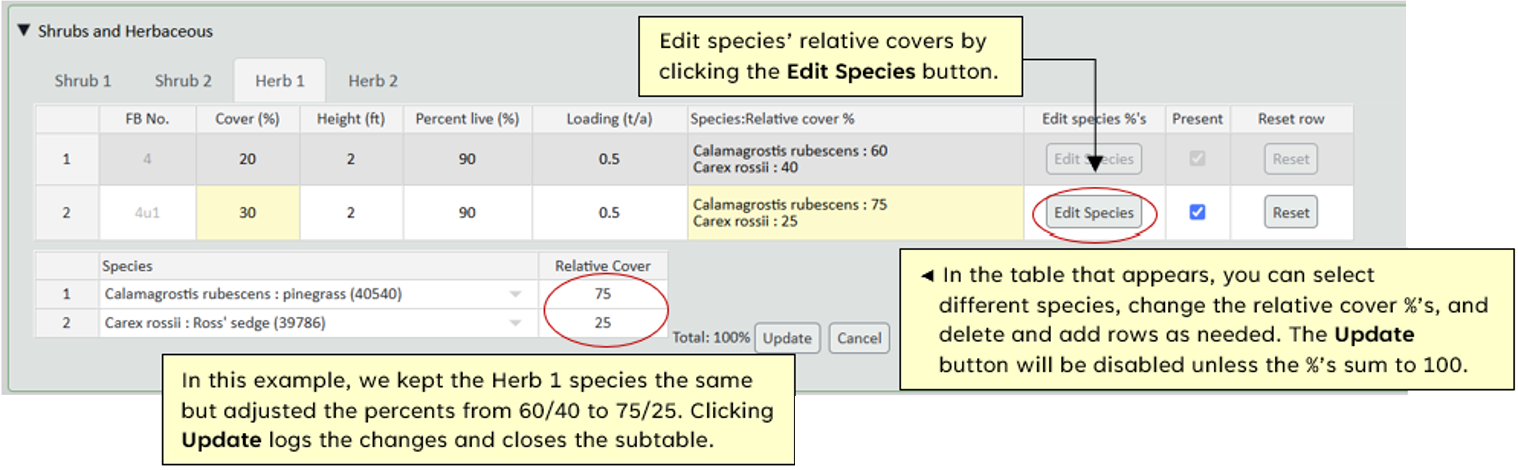
Throughout fuelbeds, species composition is required for stratum subcategories. The ‘Species:Relative cover %’ columns that display the values are read-only. To edit these lists, click the row’s ‘Edit species’ button to reveal a 2 column sub-table for editing.
Litter type percents work in much the same way with the ‘Edit Litter’ button, except all 7 litter type options are listed statically.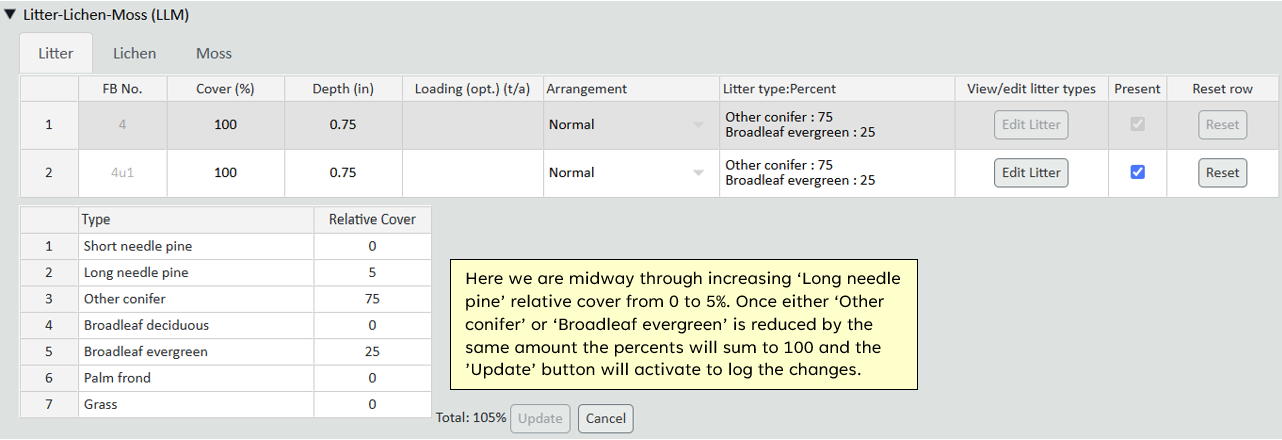
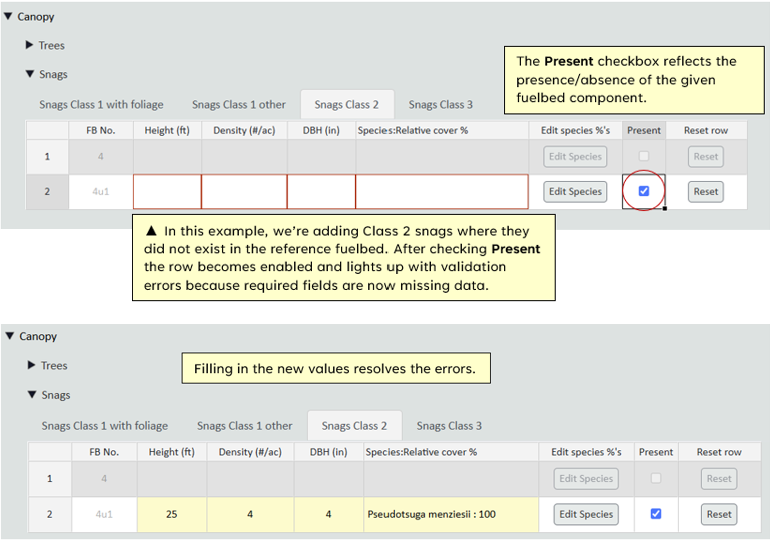
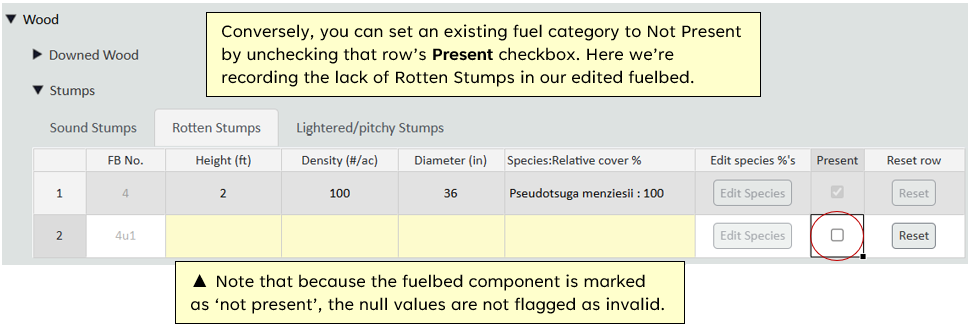
Presence/absence of fuelbed components
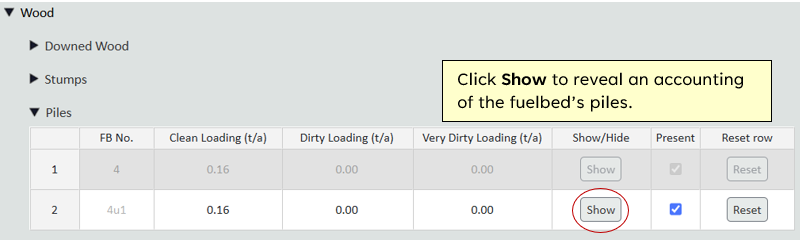
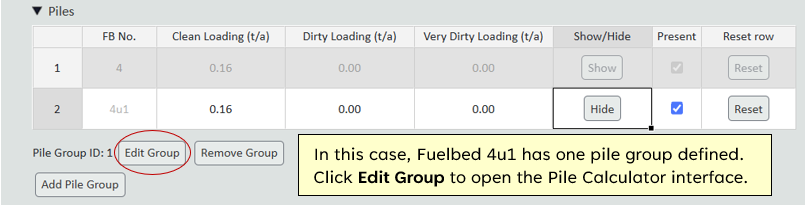
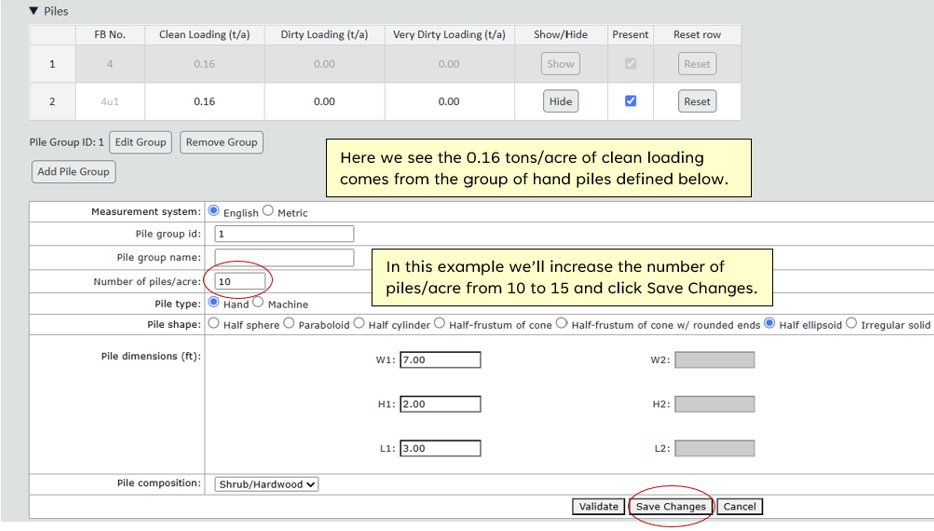
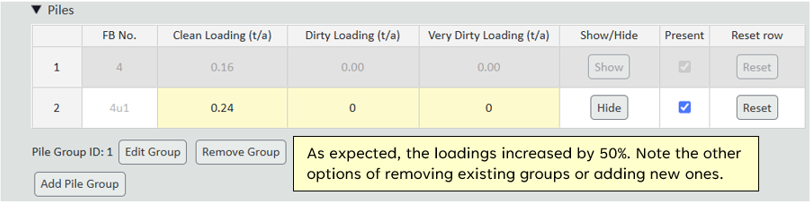
Editing piled fuels. Piled fuels data (in the Wood stratum) are stored as loadings per cleanliness category.
Underlying those loadings are pile groups, defined in the embedded Pile Calculator.