
Otobase menu structure
As you begin using the program, you will notice that the menu bar at the top of your screen changes depending upon which form or dialog is active. The standard menu bar displays when you first log on, and also appears anytime the Home Window is on your screen. The menu bar changes when the Subject List is active on your screen (the Data Manager item no longer appears, along with other changes). The menu bar also changes depending on which forms are open. The various menu options are explained throughout this Help system. Users with administrator privileges can switch to a special administrator menu bar by selecting the Data Manager > Administrator Menu Bar option with the Home Window on their screen Using the administrator menu bar).
Home Window
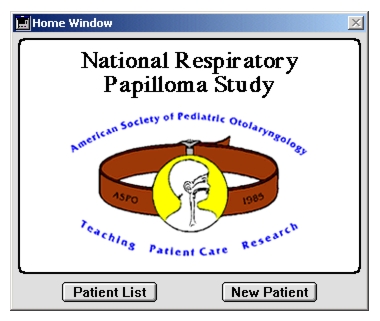
The Home Window is the first window to open when you log on to Otobase. It displays a logo and includes buttons that open the Subject List and New Subject forms.Users with administrator privileges can customize the logo in the Home Window with their own picture or graphic. For directions, see Changing the Home Windows logoChanging the Home Windows logo.
The Home Window and the Subject List are the most common starting points for many of Otobase's features. When the Home Window is open, the menu bar at the top of your screen is devoted to:
- Database management (for example, File > Preferences, File > Edit Documents)
- Data access (for example, File > Provider, File > Clinical Groups)
- The current subject list (for example, Subjects > Search)
- Aggregate data handling (for example, Reports > Export Data)
- Data management (for example, Data Manager > Human Subjects Info)
Subject List
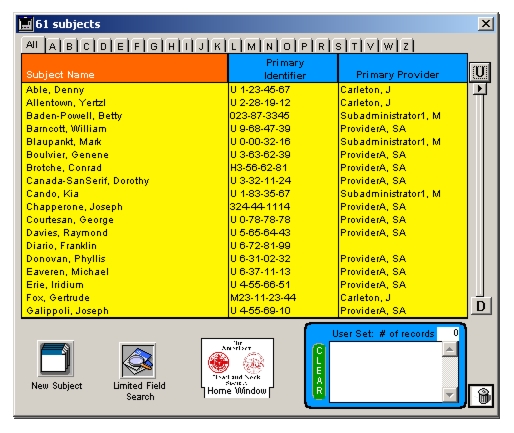
The Subject List form displays subject names, identifiers and provider information, and features alphabetized navigation tabs to make a large subject list more manageable.
To reach the Subject List from the Home Window:
The list of subjects displayed on the form depends on certain criteria you have set. The bar at the top of the window displays the number of subjects in the current list. Letter tabs appear only if a subject name on the current list starts with that letter. Clicking on the list headings (Subject Name, Primary Identifier and Primary Provider) will sort the list appropriately.
The "User Set" box on the lower right of the Subject List form is useful for selecting a subgroup of subjects for batch operations, such as updating last visit dates or printing subject information. You can place subjects in the "User Set" by dragging-and-dropping their names from the list window or holding down the Shift key while clicking on the name. You can remove subjects name from the "User Set" by dragging the names to the Trash or holding down the Shift key while clicking on the name.
Double-clicking on a subject name will open the Subject Studies form for that subject (see Using the Subject Studies form). To return to the Home Window from the Subject List form, do one of the following:
|
Otobase Otobase Web Site Voice: (206) 221-2430 Fax: (206) 221-5152 otobase@u.washington.edu |