
Assigning a Clinical Group Checklist, Search and Export
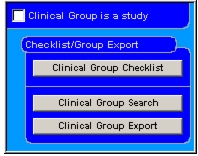
You can assign a Clinical Group Checklist, a Clinical Group Search and a Clinical Group Export using these buttons. This is normally done by the study coordinator when first creating a Clinical Group record for the study. Study participants can assign all three items automatically (see Importing study tools).
To assign a Clinical Group Checklist
- Create a Checklist for the group (see Creating Checklists).
- On the Clinical Group Information form, click Clinical Group Checklist
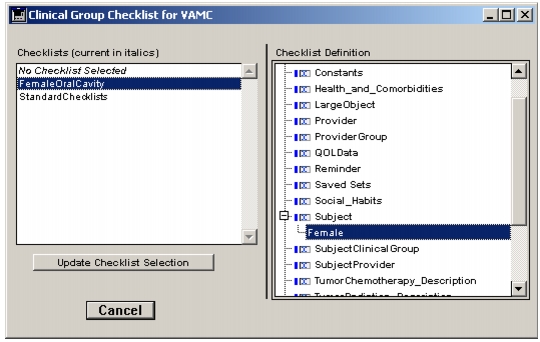
.- In the left-hand list of the Clinical Group checklist, click on the Checklist you wish to assign to the Clinical Group.
You can view the searches used to define the Checklist in the right-hand list by using the arrows or plus signs to open tables that contain the searches.- Click Update Checklist Selection and the text on the Clinical Group Checklist button will change to italics to signal that a Checklist has been assigned.
A Clinical Group's checklist can be used as the Master Checklist for the database (see Master Checklist for data entry).
You can assign Sequential Searches and Grouped Exports to Clinical Groups using the same procedure, starting with the Clinical Group Search and Clinical Group Export buttons on the form. These are used for selecting complete or partial datasets for export to a coordinating institution in a multi-center clinical study.
|
Otobase Otobase Web Site Voice: (206) 221-2430 Fax: (206) 221-5152 otobase@u.washington.edu |