How to Submit Request using inQ NWBioS System
To Submit a Research Request using UW Dept Lab Medicine & Pathology's inQ ('In Queue' - online request interface):
- Go to: Make a new ticket in inQ
- Log in with your UW Net ID and password.
- Select "NW BioSpecimen" (NWBioS) from the list of systems.
- Complete the form - filling in all of the fields.
The Name, Email, Building, Room Number, Division, and Phone will auto-populate according to your inQ user profile. To edit your profile, click the Settings link at the top of the page.
Study Registration Number should be the study number assigned to you by NWBiospecimen when your study was registered for services (it will look like R####).
Enter a brief explanation of your request in the Description of Problem/Request area.
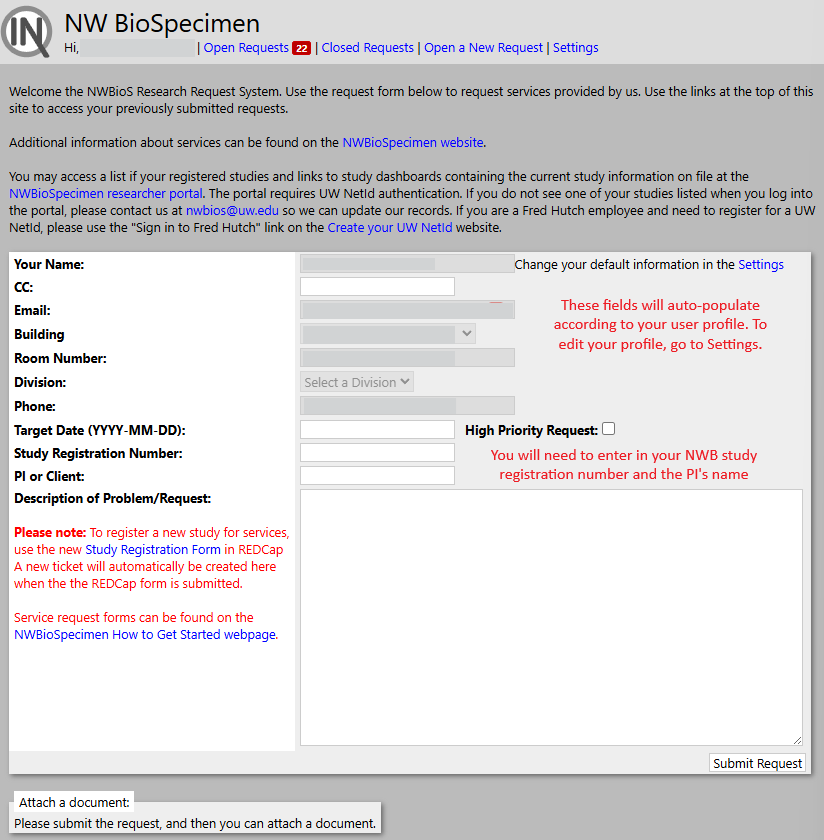
- Select Submit Request.
- You should now see your new ticket. Note, it will be assigned a new request ID that will be referenced throughout the course of completing the request.
From here, you can add any comments or attach documents.
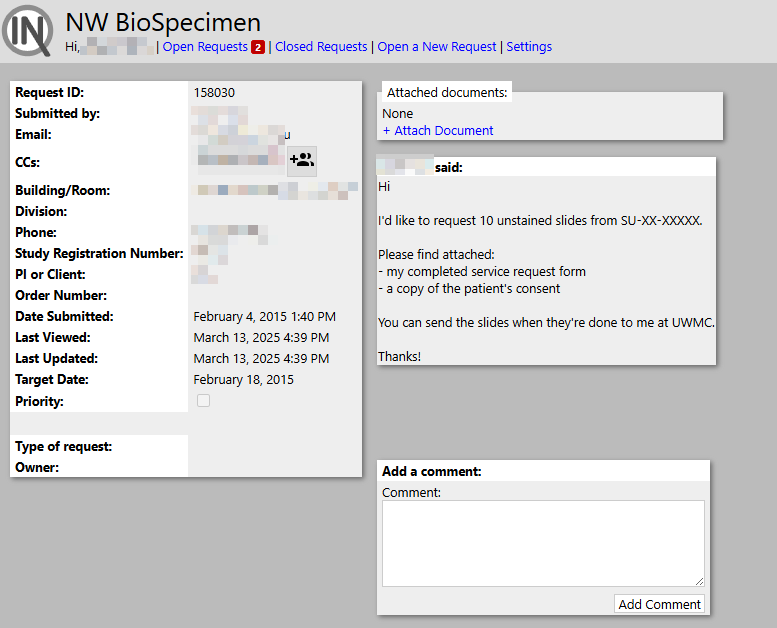
- Documents to attach:
- Service Request form (filled out completely, including study number, contact info, and Worktags - and should have detailed information on what is being requested)
- Signed patient consent (unless under waiver).
- Sectioning protocol for the destination lab or from study manual (optional).
- List of cases you want if there are too many to fit on the service form (note on service form, "See attached list of cases")
- Study not registered yet? Start here, before submitting any requests: NWBioSpecimen New Study Registration
Visit your open ticket anytime to view the current status or leave a comment. You can visit InQ and go to your Open Requests up top:

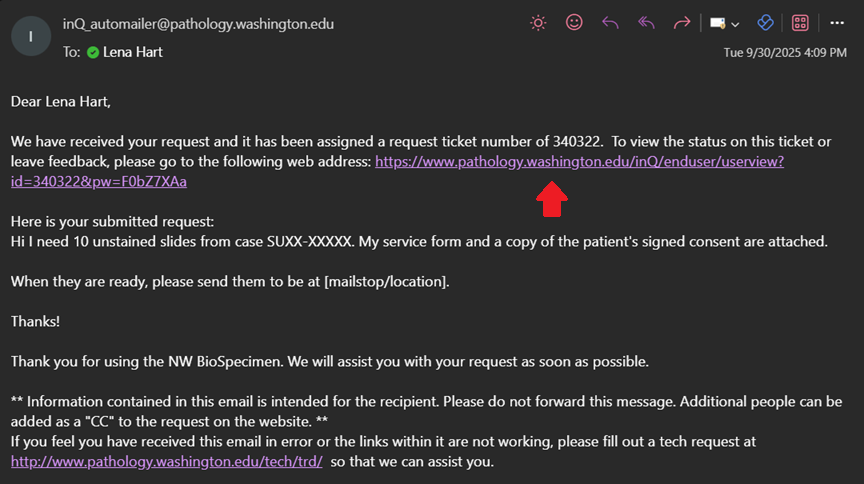
Or follow the link contained in the notification emails sent by the system:
If you have any questions, please email us: nwbios@uw.edu (general email) or nwbioarchival@uw.edu (archival team) or
nwbiosps@uw.edu (prospective team).