Input Fields
Input fields allow users to enter data for submission or search.
Anatomy
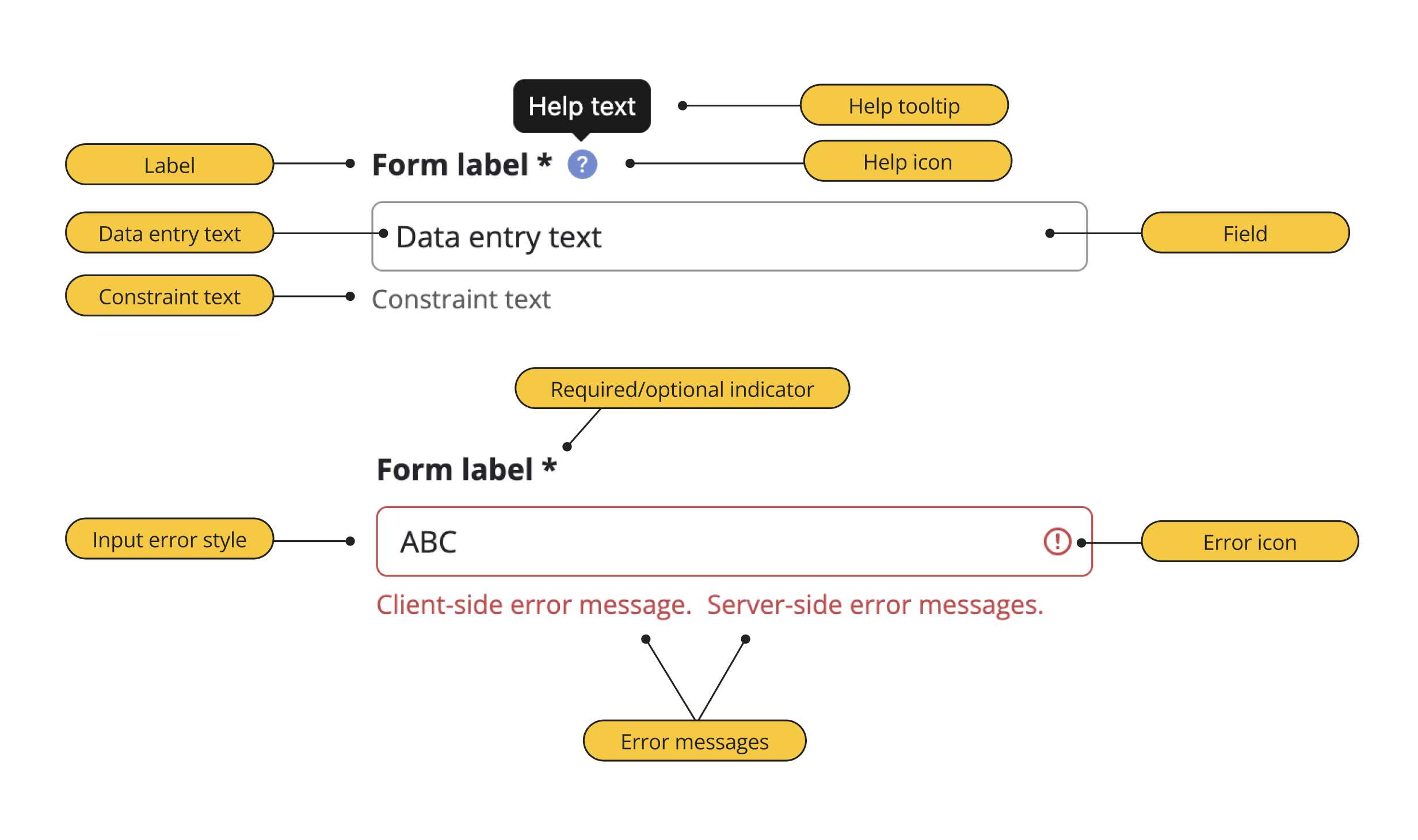
Input field anatomy
- Label – Text to identify the data object represented by the form field, located above or to the left of the input.
- Field – Area where data can be input by user or programmatically.
- Data entry text – Text typed into form fields should be clearly distinguished as entered data
- Required/optional indicator – Place where either a symbol or label that follows the field label and that informs users of whether a form is required for valid submission of the form or is optional to fill out.
- Constraint text – Text below the input specifies the format needed for valid data entry, and can include format examples or any other constraints for valid input.
- Help text – Text that is displayed in a tooltip triggered by a help icon, can give additional instructions for this field, or also provide additional context or supplementary information.
States
See Form Validation for more details on error states.
Note: Server-side error messages should be inline with and displayed after client-side error messages, so that any client-side message triggered to appear or disappear by real-time validation is more noticeable.
Options
Bootstrap Input Groups
Bootstrap input groups are UI elements that visually group either a label and an input, or an input and another form element (button, checkbox, radio button).
Word of Caution
It seems Boostrap's intention behind grouping UI elements in this way, is to associate them with one another. However, these groupings are not common, and users may not be familiar with how they operate.
Many of these input groups are likely to degrade usability and cause confusion, so use with caution and adhere to the best practices outlined below.
When to use
Input groups should generally only be used for one of two reasons:
1. Use to indicate the format or units of an input by prepending or appending input text or selection. This is best reserved for times when confusion or errors might otherwise be likely.
2. Use to help communicate that input is required when a particular checkbox or radio button is selected. Note: consider if physical proximity or grouping items in a panel might serve the same purpose.
Best Practices
Label
- Do place the label above or to the left of the form field.
- Do use just a few words for the label – Avoid long labels as they can be overwhelming and distracting. Instead, use help and constraint text to provide supplementary information, context, and input constraints or examples.
- Do use verbs like “enter,” “add,” or “input” sparingly – Generally use the label to describe what information a user needs to provide, rather than direct them to do it. The visual affordances of form inputs already imply that a user needs to enter, add, or input information in order to complete the form. The exception to this is if an interaction is new or unfamiliar, a user may need more guidance.
- Do use sentence case.
Don't add a colon (:) at the end of a field label.
The proximity of label to input already implies the relationship between the two elements.
Example:Don't use floating labels.
Fields with text in them are less noticeable, in addition, users might think there is already a default value entered in the field. Also, some browsers and assistive technologies don't properly or reliably read placeholder text. Ultimately, while floating labels do offer a better user experience than the label as a placeholder, placing the label and any example or constraint text outside the field is best.
Example:Example:
Field
Don't use placeholder text.
Placeholder text that disappears when the form field receives focus hurts usability.. Placeholder text can disappear prematurely for users navigating fields by keyboard, and in general can be hard to remember. It is better to rely on constraint text to communicate format requirements to users.
Don't use disabled fields that are never editable.
If a field will never become editable for a user, display the content as read-only text instead. Disabled fields imply a temporary state that can be changed based on the user's actions (or an external process or workflow).
Required/Optional indicator
Overview
- Clearly indicate both required and optional fields. Use one or the other for all input fields.
- Required fields should be indicated with an asterisk immediately after the label, using the same color as the input label (in most cases, black or dark gray).
- “optional” should be written out and in parenthesis.
- Provide a legend on the page indicating required fields are marked with *. An asterisk is a widely recognized indicator of required fields, but is best to be safe.
- Use the
requiredattribute. With this, screen readers announce "required" along with the label text, since the required asterisk indicator may not always be announced by screen readers, or some users may not understand this convention.
- Do omit requiredness indicators on login forms. It’s OK to skip these because it is well understood these fields are required.
- Do indicate requireness in constraint text area when there is not an input form label. (e.g. an input in a table that only has a table header).
Constraint text
Input Groups
Do place button or dropdown that populates data before input.
Warning: this input group configuration should only be used when users can edit the populated data. Otherwise, use a read-only field instead of an editable input field after the button or dropdown.
Don't use Bootstrap's standard or custom file inputs – they are unconventional and offer misleading affordances (the input appears focusable but instead triggers a OS file upload dialog).
Instead, use a single upload button and an area to display read-only information about the uploaded item.
Technical Implementation
<div>
  <label for="validationCustom02" class="form-label fw-bold">Form label *</label>
  <a href="#" class="text-dark ms-2" data-bs-toggle="tooltip" data-bs-title="Another tooltip">
    <i class="bi bi-question-circle-fill text-primary text-opacity-75"></i>
  </a>
  <input id="validationCustom02" type="text" class="form-control" value="">
  <div id="" class="form-text">Constraint text</div>
  <div class="invalid-feedback">Client-side error message.</div>
</div>