Form Validation
Help users recover from form errors by providing visible, clearly communicated, and actionable feedback.Anatomy
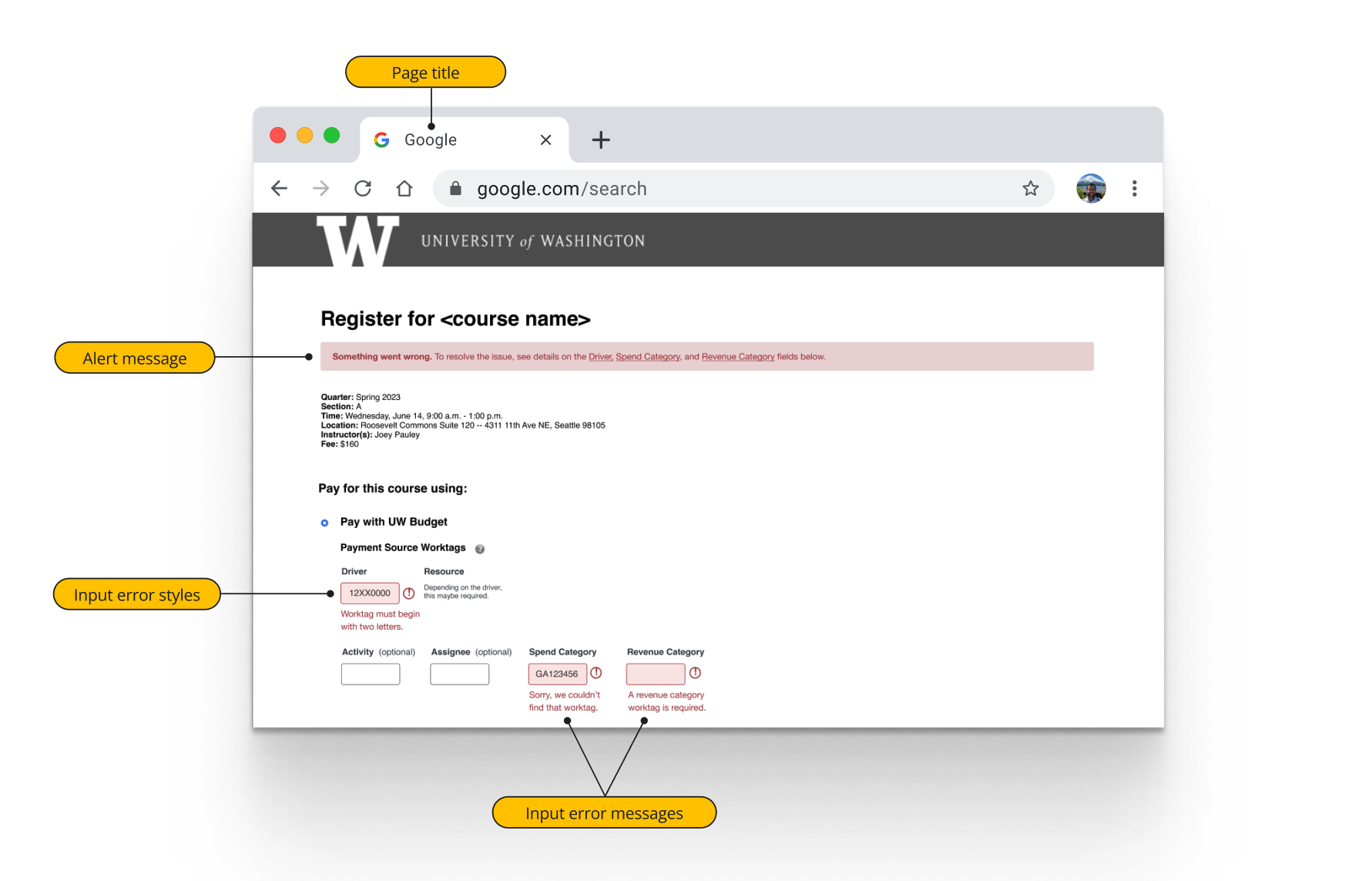
Form validation anatomy
- Page title
- Alert message
- Input error styles
- Input error message
Refer to Form Input for input anatomy details.
Guiding Principles
- Build form HTML semantically: use tags and attributes:
<label>,<fieldset>,<legend>,aria-describedby, andrequired. - Prevent errors with clear instructions – Ideally, make the interactions and written instructions clear to prevent errors happening in the first place, and help people fix problems as they occur.
- Use adaptive and forgiving inputs – Validation should be as accommodating as possible of different forms of input.
- Preserve user input – Persist forms on refresh so that user data isn’t lost.
- Avoid disabling the submit button. This can be confusing, better to rely on client-side errors before and server-side errors after submitting.
- Disable default browser error messages. Disable default messages with
novalidateon<form>element, as they are not helpful.
Validation Overview
When to trigger validation
Whenever technically feasible, input validation should be triggered at the following times, in the following sequence:
- On each input, when a user is first inputting data.
- Behavior: Validate when the user removes focus from the input field (onBlur), not during input. Note that some input fields with complex constraints (e.g. passwords) may benefit from real-time validation, even when a user is first inputting data.
- When a user first tries submitting a form (a pseudo-submission).
- Behavior: Clicking submit button does not submit form, instead triggers client-side validation. This is to ensure client-side validation is complete before submitting the form to the server (e.g. in the case where a user had skipped/missed required form inputs).
- When a form is submitted to the server (via postback or callback).
- Behavior: Clicking submit button submits form to server. Either the entire page or portion of the page containing the form refreshes with validation triggered.
- After server-response, when a user is attempting to fix errors.
- Behavior: After server submission, validate real-time any input that can be validated real-time.
Validating input in all of these ways will require a combination of client- and server-side validation, and require using a combination of Bootstrap-provided styles and components, and additional code to complete the functionality and accessibility requirements.
What to validate
Semantic input types, basic constraints, and patterns
HTML5 introduced new input types and attributes that allow browsers to perform client-side validation by default, with no or minimal JavaScript. Validation can occur on the following:
- Requiredness
- Input type (e.g. email address, phone number)
- Input pattern (e.g. must be numbers, must be two letters and one symbol)
- Minimum or maximum length or value (e.g. must be between 1-5 characters, must be more than 10)
Learn more about HTML constraint validation. Note that server-side validation is still necessary, but using HTML constraint validation improves the user experience with faster feedback.
Complex constraints
It is possible, using a combination of JavaScript and Constraint Validation API to implement more complex constraints (e.g. constraints combining several fields, or constraints involving complex calculation).
Custom business logic
Some input constraints must be checked via complex logic or via an external data set (e.g. unique input).
Ways of validating input
| Validation method | What can be validated |
|---|---|
| Client-side via Constraint Validation API | Semantic input types, basic constraints, and patterns |
| Client-side via JavaScript and Constraint Validation API | Complex constraints (e.g. constraints combining several fields; constraints involving complex calculation) |
| Client-side via custom data store (cache) | Custom business logic |
| Server-side via callback (e.g. AJAX) | Custom business logic |
| Server-side via postback | Custom business logic |
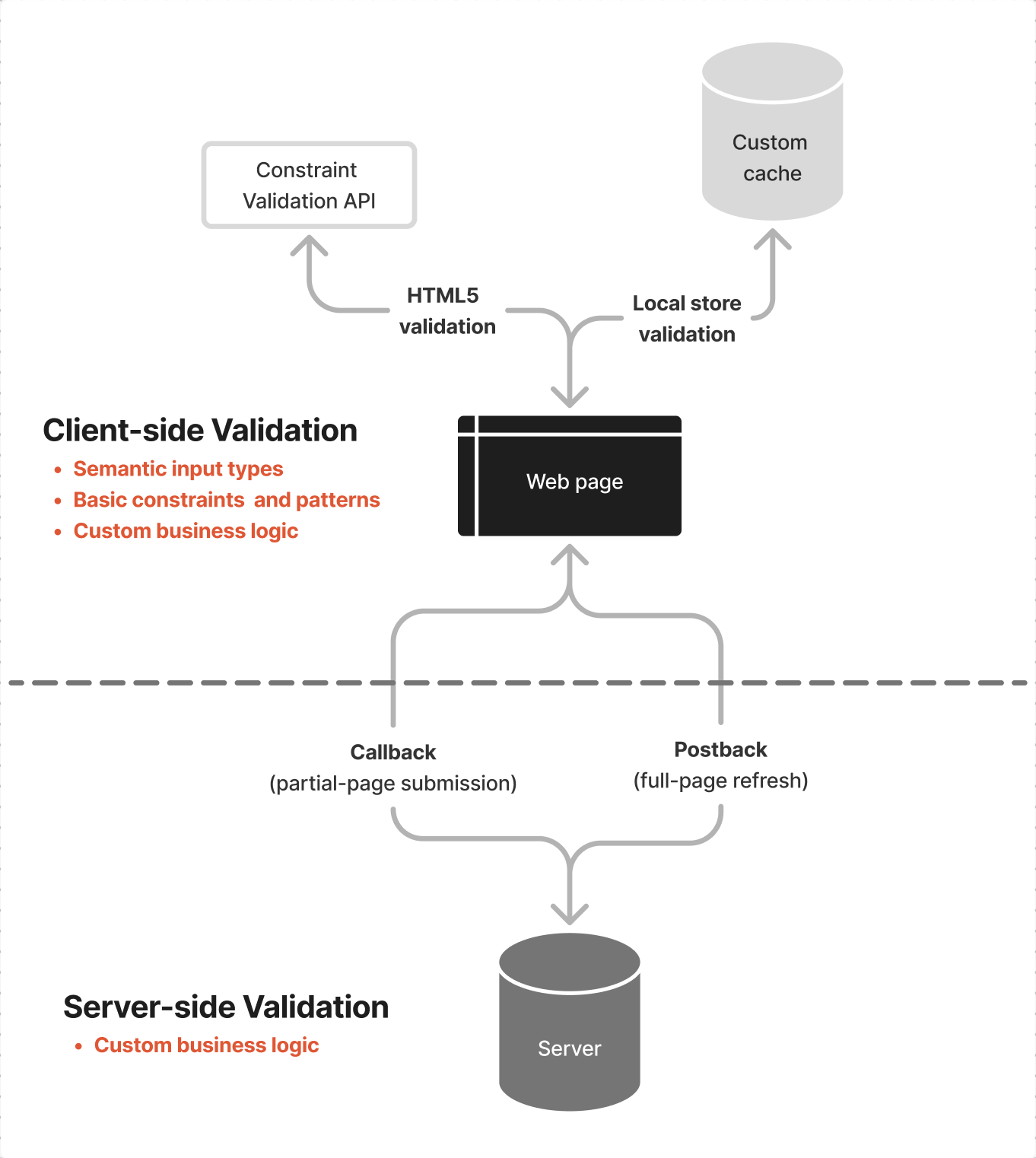
Client- and server-side validation options
Technical Implementation
When a user is first inputting data
Behavior
Validate when the user removes focus from the input field (onBlur), not during input.
Implementation
- Use HTML constraint validation, or callback (e.g. AJAX) validation, if performance allows. If callback validation takes longer than 1 second, show a progress indicator. Note custom error messages can be set using
setCustomValiditymethod. (Custom messages can be set for each condition – e.g. range under, value missing, pattern mismatch, too long.) - Use
novalidateon<form>to keep browser from running validation via default js methods. - Use
requiredattribute,patternattribute, or input types on form inputs. - Use
was-validatedclass on loss of focus on input parent (likely a<div>), not the whole form, otherwise all fields will be validated.
When a user first tries submitting a form (pseudo-submission)
Behavior
Clicking the submit button does not submit the form, instead triggers client-side validation. This is to ensure client-side validation is complete before submitting the form (e.g. in the case where a user had skipped/missed required form inputs).
Implementation
- Intercept the submit button (blocking POST)
- Use HTML constraint validation, or callback (e.g. AJAX) validation, if performance allows. If callback validation takes longer than 1 second, show a progress indicator. Note custom error messages can be set using
setCustomValiditymethod. (Custom messages can be set for each condition – e.g. range under, value missing, pattern mismatch, too long.) - Use
novalidateon<form>to keep browser from running validation via default js methods. - Use
requiredattribute,patternattribute, or input types on form inputs. - Use
was-validatedclass on<form>or parent container of all inputs so validation styles appear on all inputs at once - Note: these changes should result in real-time client-side validation (e.g. input type or input pattern constraints), not loss of focus – valid state messaging/feedback should appear as soon as the issue is resolved (i.e. as the user is typing in the input). This helps users identify when an error fixed.
When a form is submitted to the server (via postback or callback)
Behavior
Clicking the submit button submits the form to the server. Either the entire page or portion of the page containing the form refreshes with validation triggered. Based on the type of submission, specific validation implementation varies slightly.
Implementation
Full-page Implementation (postback)
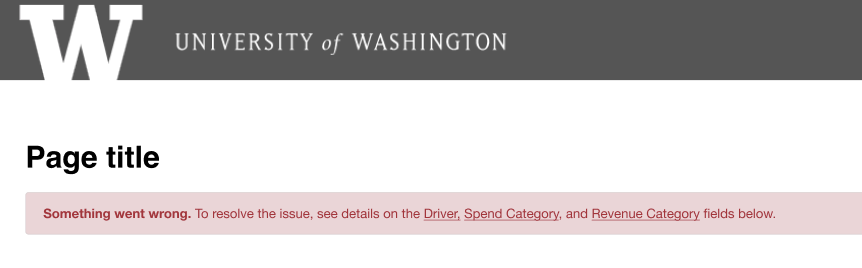
After submission and upon page refresh, the page title should indicate that it is in an error state, and the top of the page should display an Alert component with error messaging that includes a summary of errors.
- Browser page title
- Prepend “Error - ” to the page title
- Screen readers are likely to announce the title immediately when the page is loaded, so providing this information up front will make users aware that there are problems requiring their attention.
- Alert (danger variant)
- Use H2 inside alert message (note: header will need additional styling to match alert message context/text). See Alert component for additional a11y implementation.
- For long and complex forms, consider a validation summary that list errors and provides in-page links (anchors) to inputs with errors. This may be especially useful for people using screen readers, or keyboard navigation, as they are more likely to navigate back and forth between the top of the page and errant fields. Moreover, “long and complex” depends on the context of use – input dependencies, likely complexity of errors, user time constraints, and/or familiarity with the form are all factors – but a rule of thumb is any form longer than several viewports (e.g. multiple sections with headers) could likely benefit from an alert summary with anchors down to errant fields.
- Form
- Add
was-validatedclass to<form>so validation styles appear. - Add
.is-invalidclass to any invalid form inputs (it is not necessary/useful to communicate valid inputs at this stage). - Use
novalidateon<form>to keep browser from running validation via default js methods.
Partial-page Implementation (callback)
After submission and upon form refresh, the container/panel/area containing the submitted form should display an Alert component (at or near its top) with error messaging that includes a summary of errors.
- Alert (danger variant)
- Use H2 inside alert message (note: header will need additional styling to match alert message context/text). See Alert component for additional a11y implementation.
- Form
- Add
was-validatedclass to<form>so validation styles appear. - Add
.is-invalidclass to any invalid form inputs (it is not necessary/useful to communicate valid inputs at this stage).
After server-response, when a user is attempting to fix errors
Behavior
After server submission, validate real-time any input that can be validated real-time – i.e. semantic input types, basic constraints, and patterns. Server errors will still require a submission to the server; when possible, errors that can be validated via callback should be validated real-time. Client- and server-side messaging are displayed inline, with client-side messaging first. Server-side messaging will not disappear until a valid submission to the server occurs.
Implementation
- Keep
novalidateon<form>to keep browser from running validation via default js methods. - Keep
was-validatedclass on<form>so validation styles appear on all inputs, and so that HTML constraint validation occurs real-time. - Similarly, callback (e.g. AJAX) validation can occur real-time if performance allows. If callback validation takes longer than 1 second, show a progress indicator.
Accessibility
- Make sure any error container has
role=”alert”andtabindex=”0″. - Use
aria-describedbybecause default Bootstrap client-side validation isn't accessible: - “currently the client-side custom validation styles and tooltips are not accessible, since they are not exposed to assistive technologies.”
- Remedy (Via UWT): “if additional help text is available, it can be associated with the form field using the
aria-describedbyattribute and corresponding input ID. Screen readers will announce both the label and help text when the form field has focus.” - Don’t use
aria-invalid=”true”. Applying thearia-invalid=”true”attribute to a form control will only cause the screen reader to announce "invalid" when that control gets the focus — and that's all.
Resources and Reference Articles
- Accessible forms: https://www.washington.edu/accesstech/websites/forms/
- Form design best practice: https://uxdesign.uw.edu/interaction/forms.html