





TRIO Live 2 Instructions
In order to be eligible for People's Choice Awards, you will need to add "uwtriolive" tag to your video and allow ratings. You may decide to allow or disallow comments depending on your preference.
The default settings for ratings and comments on YouTube are fine, so there is no need to make any changes to these two settings. However, you have to add the tag on your own, so please see below for instructions.
1. Add "uwtriolive2" tag to your YouTube video
There are two ways to tag your video. The first one is to add the tag while you're uploading your video to YouTube. Type in "uwtriolive2" under tags, and click on Save Changes once you are finished.

The other way is to edit the video settings after your video has been uploaded to Youtube; go to YouTube help page on how to add a tag to a video for instructions.
2. Ratings
Ratings are allowed on YouTube videos by default and ratings must be allowed in order for your video to be eligible for People's Choice Award, but see below if you ever need to change the setting.
- Go to YouTube and log in
- Highlight your username on the top right of the page and click on My Videos on the dropdown menu or simply go to http://www.youtube.com/my_videos
- Click on the Edit button for the video you choose
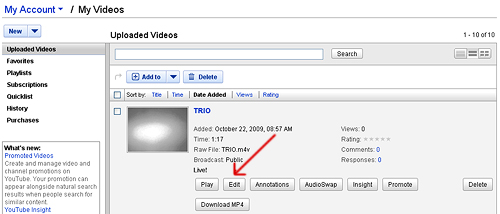
- Scroll down the page, and under Broadcasting & Sharing Options, click on Ratings to show the options, choose 'Yes, allow this video to be rated by others.'
- Click on Save Changes.
3. Comments
It is your choice whether or not to allow comments on your video. Comments from all YouTube users are allowed on YouTube videos by default, but if you are concerned about receiving some negative or other unfortunate comments, please see below to learn how to change the setting.
- Go to YouTube and log in
- Highlight your username on the top right of the page and click on My Videos on the dropdown menu or simply go to http://www.youtube.com/my_videos
- Click on the Edit button for the video you choose
- Scroll down the page, and under Broadcasting & Sharing Options, and under Comments please choose accordingly.
- Allow comments automatically: every YouTube user can comment
- Allow friends' comments automatically, all others with approval only: YouTube users that you have added as your friends can have their comments posted right away, all other users' comments will be moderated and you may choose whether to accept or reject their comments
- Allow all comments with approval only: all comments will be moderated and you may choose whether to accept or reject their comments
- Don't allow comments: no one can comment on your video
- Click on Save Changes.